
Centre for Teaching Excellence
Student Guide to PebblePadStudent Guide to PebblePad
What is PebblePad?
PebblePad is our new system for logging and evidencing achievements, experiences and skills at CapU. PebblePad can be used in many flexible ways to help you plan, record, reflect and evidence your learning including:
- Creating eportfolios
- Recording and reflecting on field work
- Recording and reflecting on work integrated learning experiences
- Completing assignments
- Reflecting on your learning journey in your discipline.
Where will I encounter it?
Typically, you will first encounter PebblePad through an assignment in your eLearn course. If it is your first time using it, you will get an email in your CapU student email account with a link to your setup page.
How do I log in?
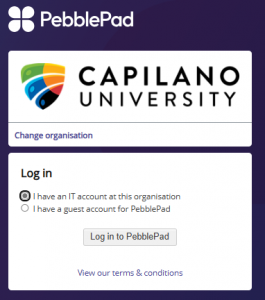
When you have your account set up, you can follow the assignment link from eLearn to your PebblePad dashboard. To log in directly to PebblePad, follow this link and select “I have an IT account at this organization”: PebblePad – Login
What browsers and devices are supported?
PebblePad runs on Windows, Mac, Linux, iOS and Android devices with a modern web browser. Google Chrome, Apple Safari, Microsoft Edge, Mozilla Firefox and Opera browsers are all supported. Full details of all supported browsers and devices are available here: Recommended Browsers and Devices
Where do I do my course work?
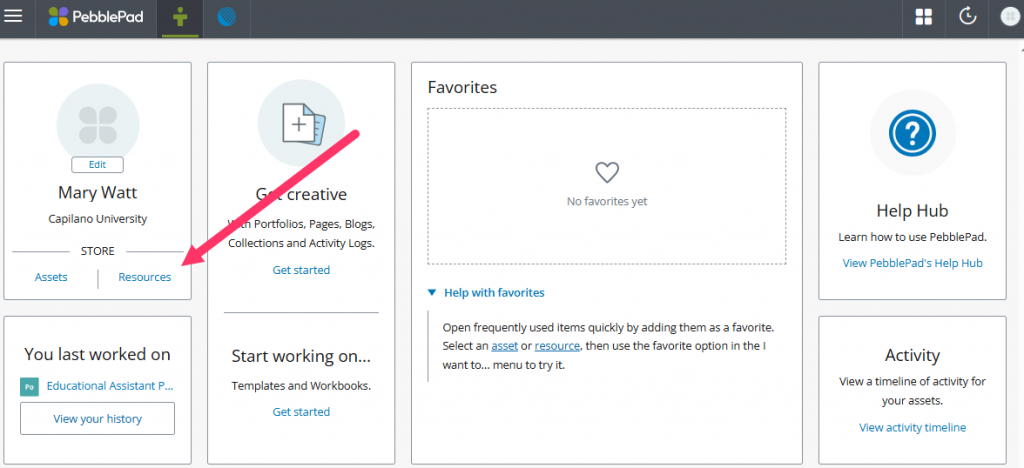
On your Dashboard under Resources, you’ll find any workbooks or templates that have been shared with you for your course work. As soon as you open them up and save them your instructor will know that you’ve started. These Resources will not be shared with anyone else unless you make them public and share the link.
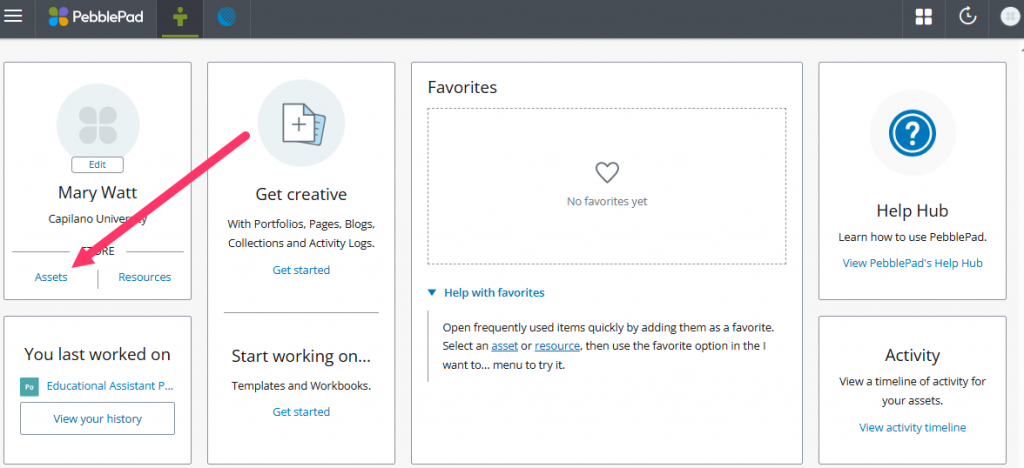
To complete the assignments and portfolio requirements you will be uploading evidence of your learning – images, video, audio and text files. These will become part of your Assets folder. You can draw on these assets again to create professional portfolios and other projects that you can share publicly.
How do I record evidence with my phone?
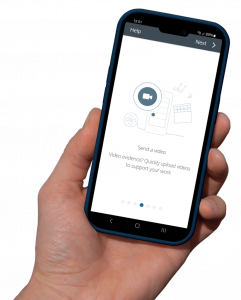
If you are doing field work and are capturing images and video as evidence of your learning, you can download and use PebblePocket. This PebblePad companion app will allow you to save and upload directly to your Assets folder.
How do I set up my own ePortfolio?
Use this step by step guide to get started on your portfolio.
Where can I get more help?
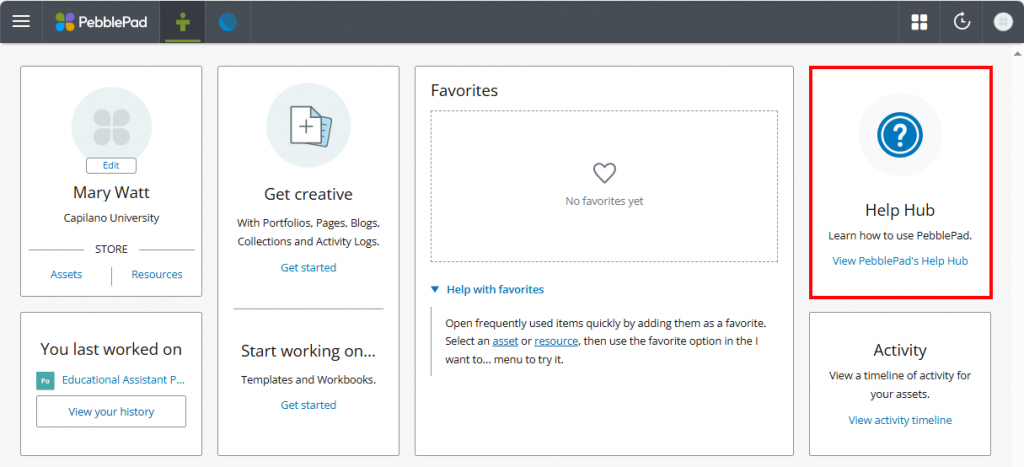
There are several ways to access help and support from within PebblePad once you are logged in. The Help Hub contains short how-to videos, a useful glossary and tip sheets.
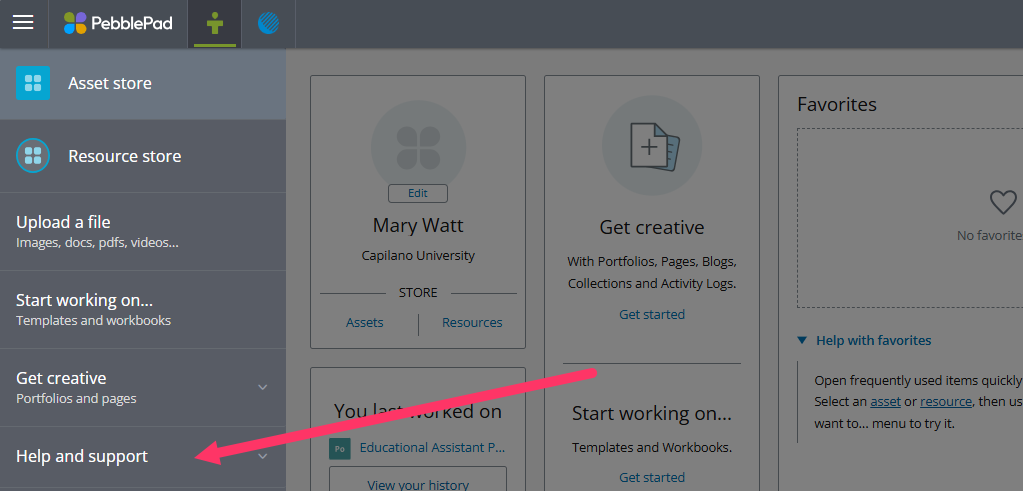
You can also open the Burger Menu to find the Help and support section; this contains in-depth help guides covering a wide range of topics.
The CapU Student Digital Ambassadors are also available online and in the Library Commons to help you with any educational technology questions.
Capilano University is named after Chief Joe Capilano (1854–1910), an important leader of the Skwxwú7mesh (Squamish) Nation of the Coast Salish Peoples. We respectfully acknowledge that our campuses are located on the unceded territories of the səlilwətaɬ (Tsleil-Waututh), shíshálh (Sechelt), Skwxwú7mesh (Squamish), and xʷməθkʷəỷəm (Musqueam) Nations.
Capilano University | 2055 Purcell Way | North Vancouver | BC | Canada | V5J 3H5